Gamescope - Valve's upscaler

Gamescope is a microcompositor from Valve that is used on the Steam Deck. Its goal is to provide an isolated compositor that is tailored towards gaming and supports many gaming-centric features such as:
- Spoofing resolutions
- Upscaling using AMD FidelityFX™ Super Resolution (FSR) or NVIDIA Image Scaling (NIS)
- Limiting framerates.
Requirements
- AMD: Mesa 20.3 or above
- Intel: Mesa 21.2 or above
- NVIDIA: proprietary drivers 515.43.04 or above, and the nvidia-drm.modeset=1 kernel parameter
Installation
1
sudo pacman -S gamescope
Nvidia
Better understanding of how Nvidia DRM Modeset is designed found in Nvidia forum by an official called “aplattner”.
[…] All it really does is enable the DRIVER_MODESET capability flag in the nvidia-drm devices so that DRM clients can use the various modesetting APIs. In addition to allowing clients that talk to the low-level DRM interface to work, it’s also necessary for some PRIME-related interoperability features. […]
To set it you have to add it nvidia-drm.modeset=1 to the kernel (linux) command line in bootloaders, like for GRUB you have to edit /etc/default/grub as root.
1
GRUB_CMDLINE_LINUX_DEFAULT="loglevel=3 quiet nvidia-drm.modeset=1"
Apply the changes and restart afterwards.
1
grub-mkconfig -o /boot/grub/grub.cfg
For bootloaders other than GRUB checkout Arch Wiki > Kernel paramters
Usage
Gamescope offers many options, far too many to cover here. For a full list use the gamescope --help command from a terminal.
1
gamescope -h 720 -H 1080 -F fsr -f --expose-wayland --
| parameter | description |
|---|---|
| -W, –output-width | output width (of display) |
| -H, –output-height | output height (of display) |
| -w, –nested-width | game width |
| -h, –nested-height | game height |
| -r, –nested-refresh | game refresh rate (frames per second) |
| -F, –filter | upscaler filter (linear, nearest, fsr, nis, pixel) |
| -b, –borderless | make the window borderless |
| -f, –fullscreen | make the window fullscreen |
| –expose-wayland | Allow support for wayland clients using xdg-shell |
fsr => AMD FidelityFX™ Super Resolution 1.0
nis => NVIDIA Image Scaling v1.0.3
Steam
If you’re using Proton Experimental or all other official builds then edit your start options per-game this way:
1
gamemoderun gamescope -h 720 -H 1080 -F fsr -f -- %command%
If you’re using Proton-GE custom build then edit your start options per-game this way:
1
WINE_FULLSCREEN_FSR=1 WINE_FULLSCREEN_FSR_MODE=balanced WINE_FULLSCREEN_FSR_STRENGTH=1 %command%
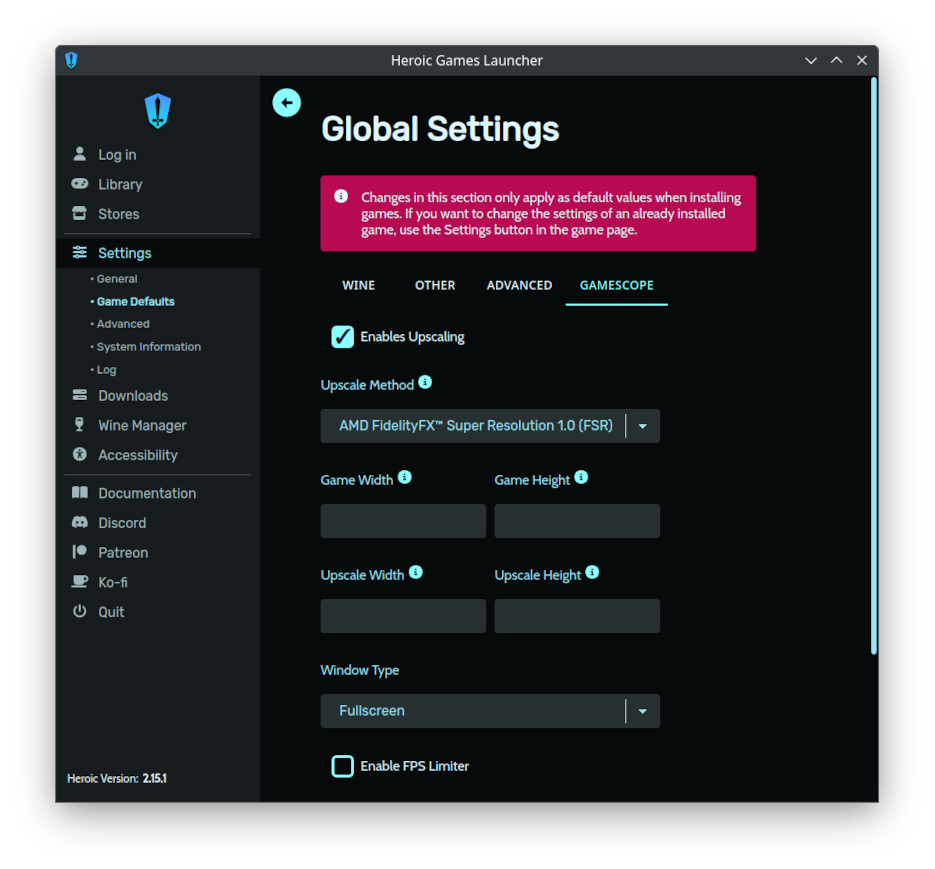
Any other lauchners
… have options for this, for example: 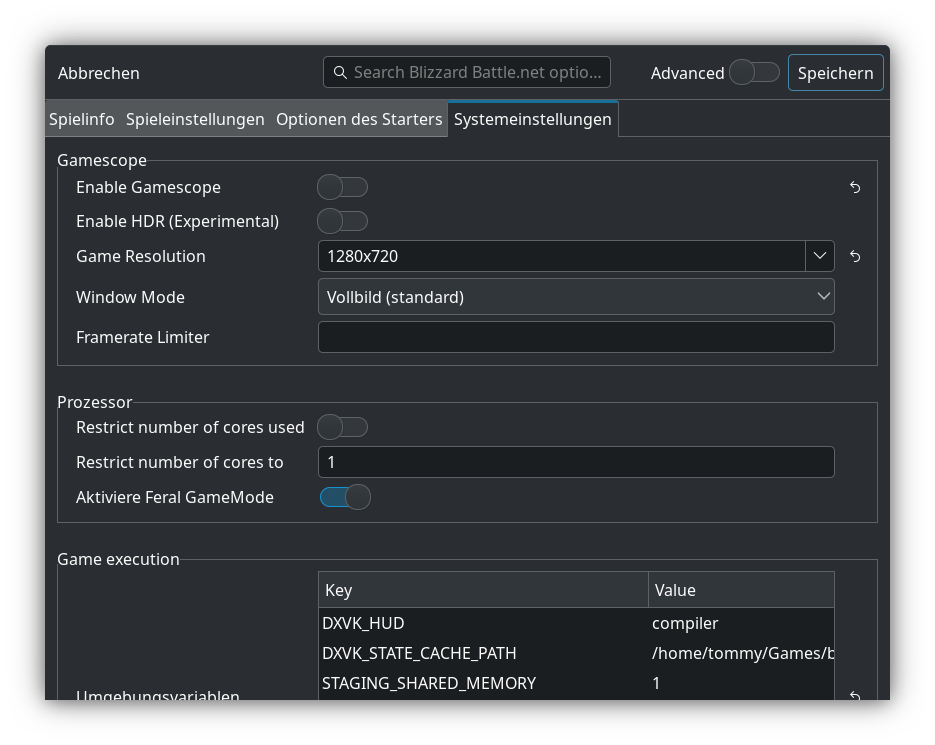
Examples
my Setup(s):
| PC | CPU | Cores / Threads | RAM | GPU |
|---|---|---|---|---|
| Gigabyte BRIX s | AMD Ryzen 7 4800U | 8 / 16 | 32 GB | AMD Radeon RX Vega 8 |
| Asus TUF FX504GE | Intel Core i7-8750H | 6 / 12 | 16 GB | Nvidia Geforce 1050 Ti Mobile |
The Elder Scrolls V - Skyrim (Special Edition)
- Used
Proton-GE(latest) - Launch options in Steam:
1
WINE_FULLSCREEN_FSR=1 WINE_FULLSCREEN_FSR_CUSTOM_MODE=1280x720 WINE_FULLSCREEN_FSR_MODE=quality WINE_FULLSCREEN_FSR_STRENGTH=2 %command%
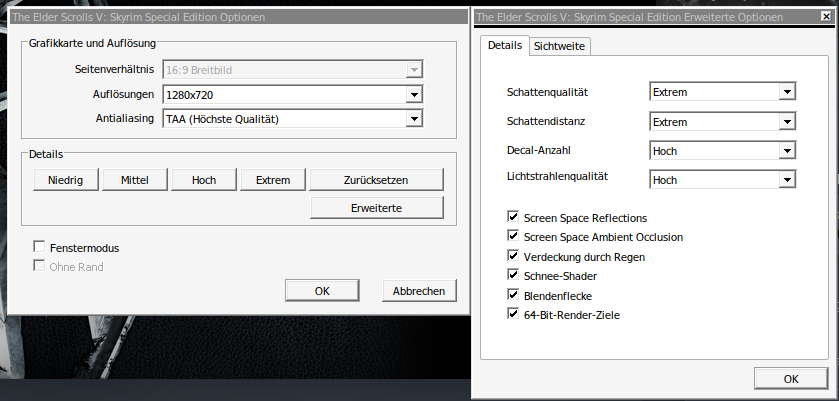
Settings ingame:
- Final result:
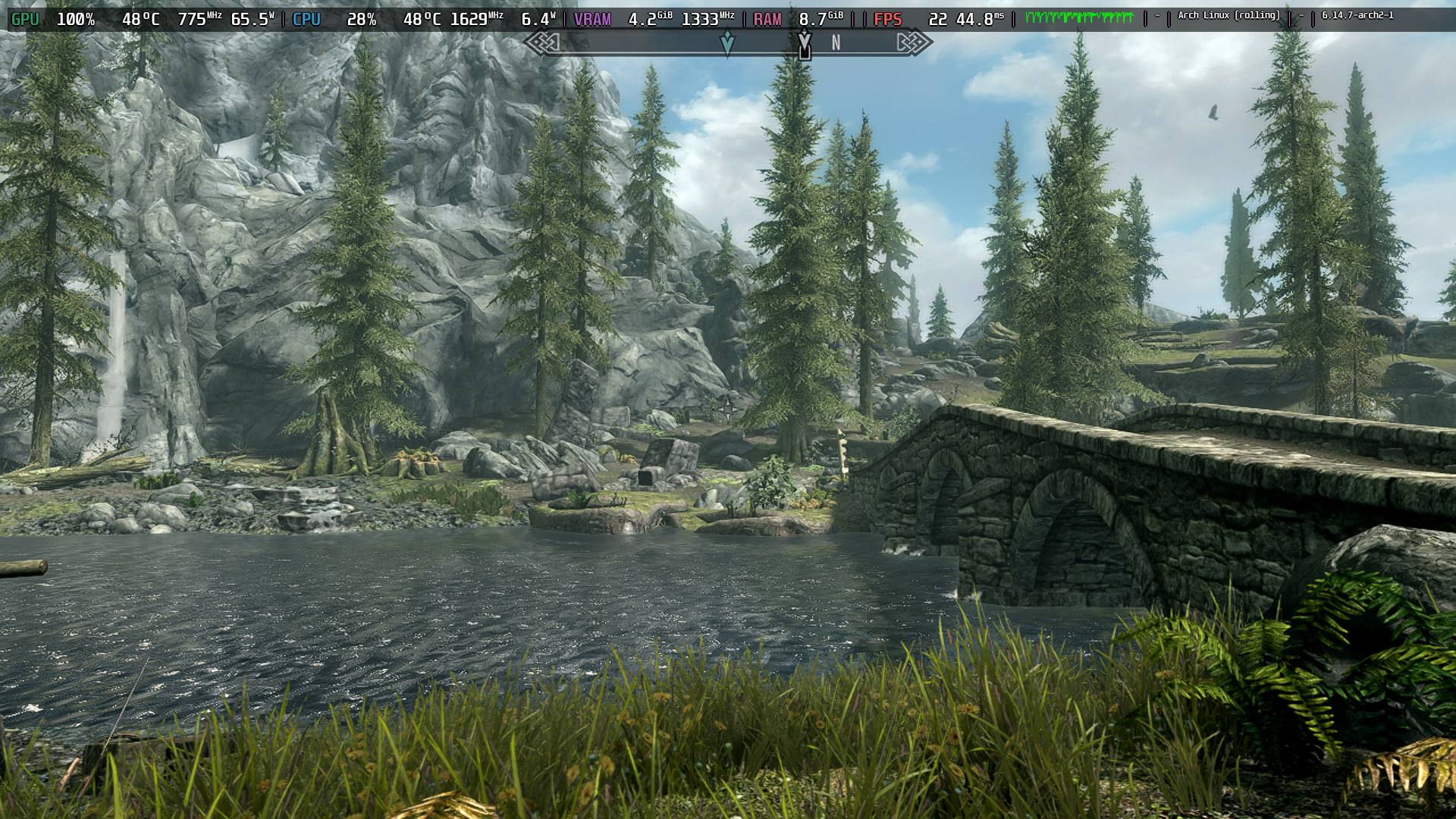
I don’t know how accurate
MangoHUDis, but the game runs smooth.
More games will follow.