NonSteamLaunchers - Add alternative launchers to Steam (Battle.net, Epic Games, GOG and more)

This is an absolute fantastic way to setup alternative launchers directly in Steam! I used NonSteamLaunchers-On-Steam-Deck-Repository by moraroy to accomplish that. The name implies that this might be Steam Deck only but its also Arch Linux and gave it a try. To give you a spoiler: "It works flawlessly"
Installation
- Prerequisites To work with GitHub repositories it is essential that you have
gitandbase-develinstalled:
1
pacman -S git base-devel
- Clone the repo and
cdinto it
1
2
git clone https://github.com/moraroy/NonSteamLaunchers-On-Steam-Deck.git
cd NonSteamLaunchers-On-Steam-Deck
Start the installation by executing the provided script. In the GitHub repository there is also an option to just download a .desktop file and launch it that way, but by executing the script in a terminal you’ll see what the script is doing and the overall installation process takes time. At some point the GUI also looks like it crashed but it isn’t the case.
1
2
chmod +x ./NonSteamLaunchers.sh # Optional if not already executable
./NonSteamLaunchers.sh
When the main window appears just tick the launchers you want to install and hit OK. 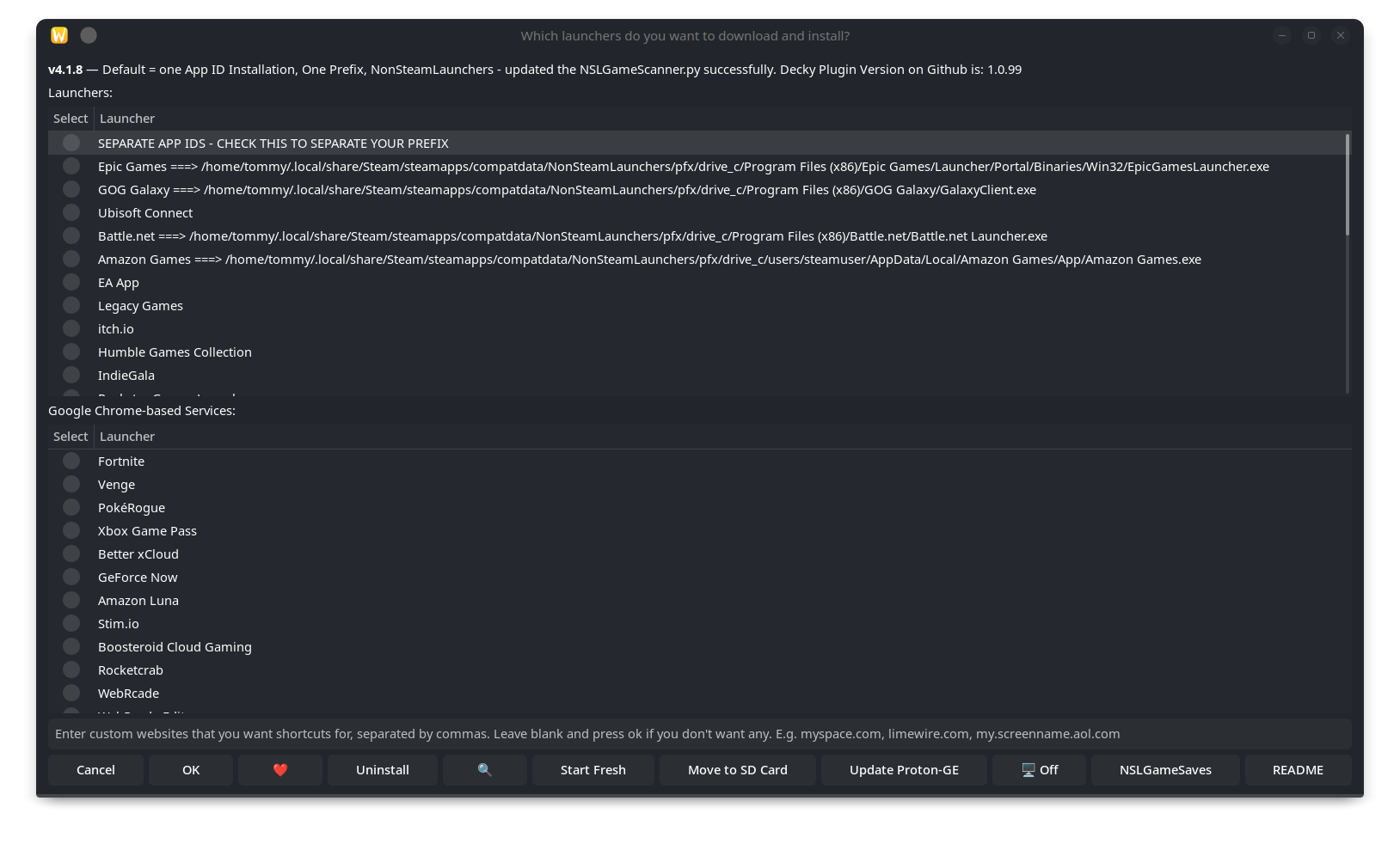
I encourage you to install proton-ge-custom-bin package via AUR because it provides always the latest Proton build by GloriousEggroll.
Add mount points in NonSteam games
For me I download every game from Steam and alternative launchers to a external drive. I found out that there is no easy way to add mount points to a NonSteam game via winecfg. Especially when protontricks do not find the AppID to a NonSteam game. So I decided to write a little script for that problem. Source: https://github.com/anonymouz-trash/Steam-Proton-Manager
Installation
1
2
git clone https://github.com/anonymouz-trash/Steam-Proton-Manager.git
cd Steam-Proton-Manager
1
sudo ln steam-proton-manager.sh /usr/local/bin/steam-proton-manager
You can
hard linkthe script to/usr/local/binto make it globally available. ;-) In case of updates to the repository the hard linked file will be the exact same as the source. So don’t have to do this step every time.
Usage
1
2
3
4
5
6
7
8
9
10
11
12
13
14
15
USAGE: $0 {"STEAM_COMPAT_DATA_PATH"} {"shortcut"}

Example: $0 /home/$USER/.local/share/Steam/steamapps/compatdata/<appid> winecfg

Hint: Always use absolute paths! The 2nd parameter is optional.

The 2nd paramater can be used as shortcut:
control  = start Control Panel
regedit  = start Regisitry Editor
taskmgr  = start Task Manager
winecfg  = start WINE-Configuration
tricks   = start winetricks
fonts    = Install core (f)onts
vcrun    = Install Visual (C)++ Runtime 2015-2022
dotnet   = Install .(N)ET 4.8
- 1st: Check the AppID in your local “../steamapps/compatdata/” folder
1
2
3
4
5
6
7
8
9
ls -l ~/.local/share/Steam/steamapps/compatdata

insgesamt 24
drwxr-xr-x 3 tommy tommy 4096 30. Nov 11:57 0
drwxr-xr-x 3 tommy tommy 4096  1. Mai 10:41 2348590
drwxr-xr-x 3 tommy tommy 4096  1. Mai 08:58 2805730
drwxr-xr-x 3 tommy tommy 4096  1. Mai 08:06 3658110
drwxr-xr-x 4 tommy tommy 4096 29. Mai 07:36 4206469918
lrwxrwxrwx 1 tommy tommy   62 29. Mai 07:38 NonSteamLaunchers -> /home/tommy/.local/share/Steam/steamapps/compatdata/4206469918
There you’ll a file called NonSteamLaunchers. This file is linked to the right folder with digits. That is our wanted folder. Copy the absolute path /home/tommy/.local/share/Steam/steamapps/compatdata/4206469918.
- 2nd: Start my script as shown below
1
steam-proton-manager /home/tommy/.local/share/Steam/steamapps/compatdata/4206469918 winecfg
This will start the Wine Configuration window where you are able to add mount points via the Drives panel. 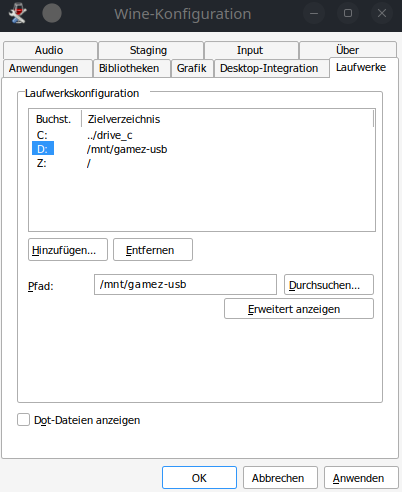
The easier way
Just add a symbolic link to the directory you want to mount as a windows drive.
1
ln -s /path/to/mount/directory /path/to/prefix/dosdevices/d: